How to install Ubuntu In Windows without VirtualBox
Hey!

Today, I will show how you can use Linux terminal in Windows
Many of you may know about this feature of windows, Windows
allows users to run Linux distros on Windows using an in-built
feature of windows which is 'Windows subsystem for Linux'
It comes built in Windows8/10 (Beta versions in 7). So let's have
'BASH' in CMD.
To do this, follow the below steps carefully :
search 'turn windows features on' in the search box
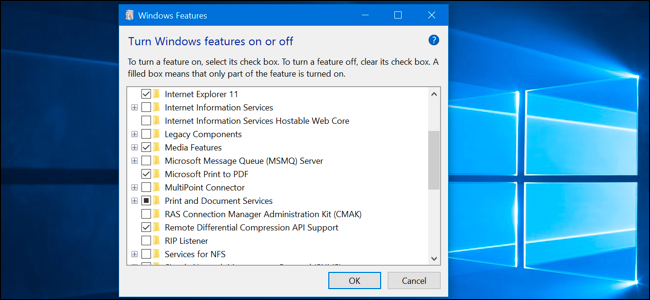
You will see a windows like above, Now here search for 'windows
subsystem for linux'

Now check the checkbox in front of it to turn it on. Now, you may
have to restart your PC to let this feature be effective.
After restarting your pc, Open Microsoft store and search for Ubuntu
You may choose any version of your choice but I'll recommend the
latest one.
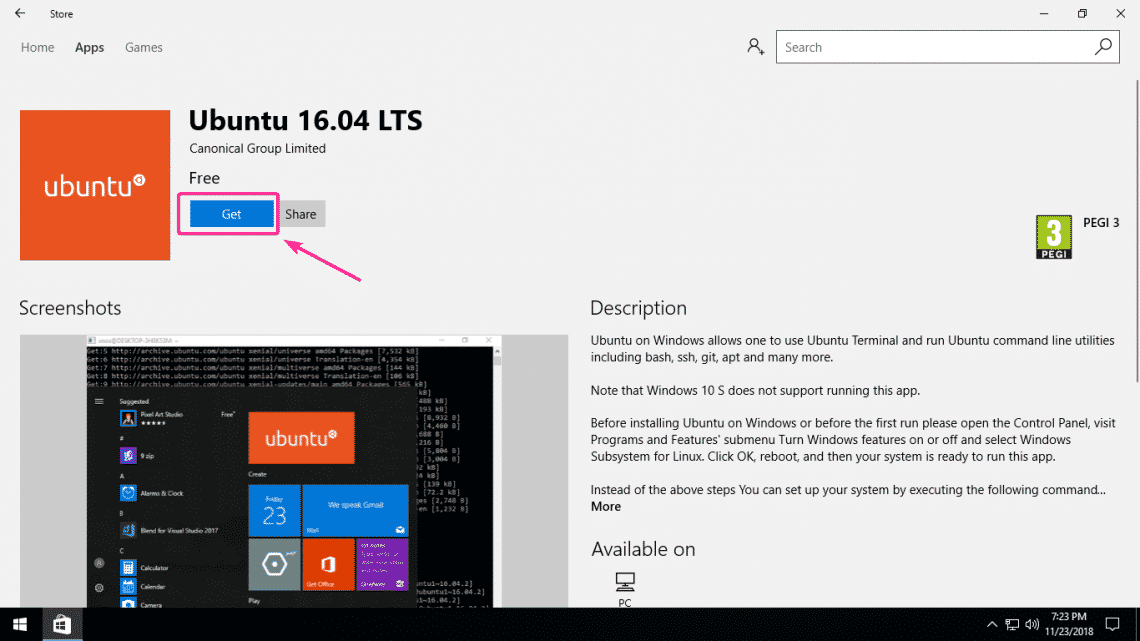
Wait for it to download and install, after installation is finished,
you are ready to launch ubuntu on windows, Click the 'Launch'
button to run it. Now it'll automatically install ubuntu on your
computer (this can take a few minutes), after installation is
completed, it will ask you for your username and password, enter
the details and
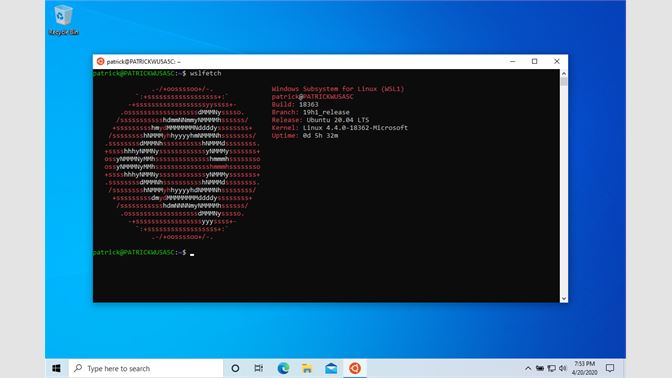
Boom!! You now got a linux machine on your windows machine
You can run this through cmd also by 'bash' command.
Note : All the drives of your windows computer can be found inside
the 'mnt' directory in root folder.
If you followed the above steps carefully, there should not be any
error but if you are facing any issue in this whole process, you can
freely ask it in the comments. Signing Out!


Comments
Post a Comment